If you're getting a weird error message, you can try resetting the Windows Update database on your computer.
-
Close Legacy Update and any other programs using Windows Update.
-
Press Win+R to open the Run dialog.
-
Type
services.msc, and click OK.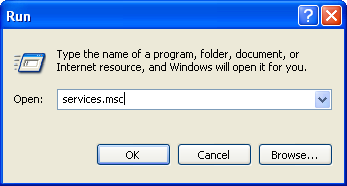
-
If a User Account Control dialog appears, click Continue or Yes.
-
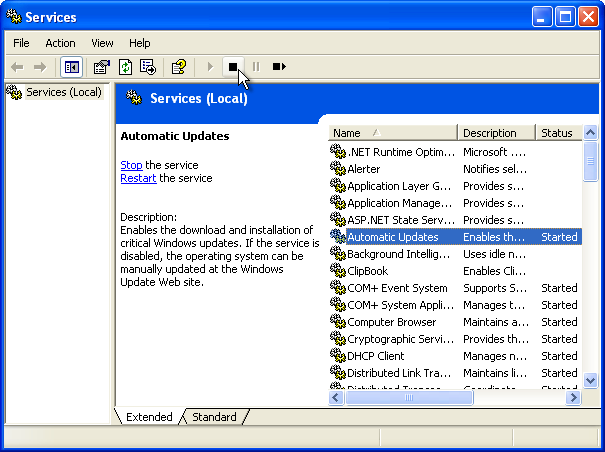
In the Services window, find Automatic Updates (Windows 2000 and XP) or Windows Update (Windows Vista and later). Click it, and then click Stop in the sidebar or toolbar.
-
Wait a few seconds for the service to stop. If you receive an error message, you may need to restart your computer and try again.
-
Close Services.
-
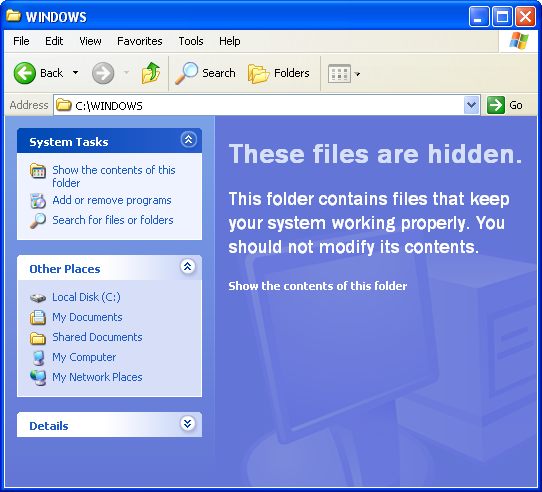
Click Start → My Computer → Local Disk (C:).
-
If you see “These files are hidden”, click “Show the contents of this folder”.
-
Double-click the Windows folder.
-
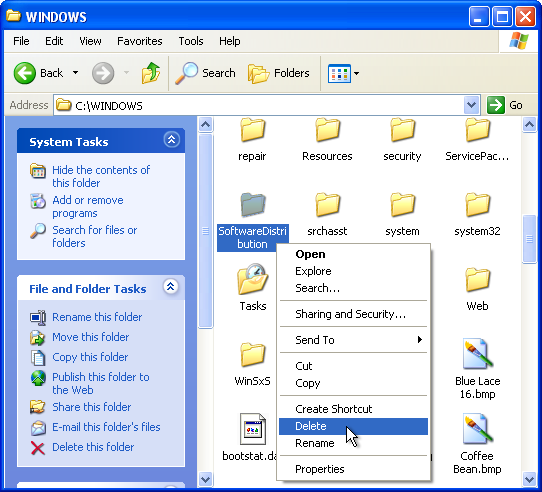
Scroll down and find the SoftwareDistribution folder.
-
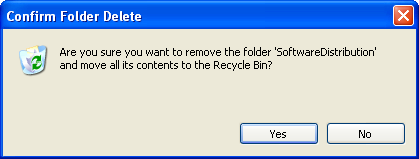
Right-click the folder and select Delete.
-
Click Yes when prompted.
You have now reset the Windows Update store. When you next check for updates, the store will be rebuilt. Be aware that this will cause the update check to take longer than usual.