Legacy Update 1.12.1 fixes some issues from 1.12. (Surprisingly few issues for a big rewrite!)
Legacy Update News
Learn more about what we’re doing at the Legacy Update project.
Legacy Update 1.12.1
-
Adam Demasi

- Published:
Legacy Update 1.12
-
Adam Demasi
- Published:
Legacy Update 1.12 is a huge rewrite release. We switched from compiling with Visual C++ 2008 (and 2010, and 2017, and 2022…), a setup which Microsoft recently broke, to a streamlined open-source MinGW/GCC toolchain. The result: 1.12 is 50% smaller than 1.11, which was already below 1 MB!
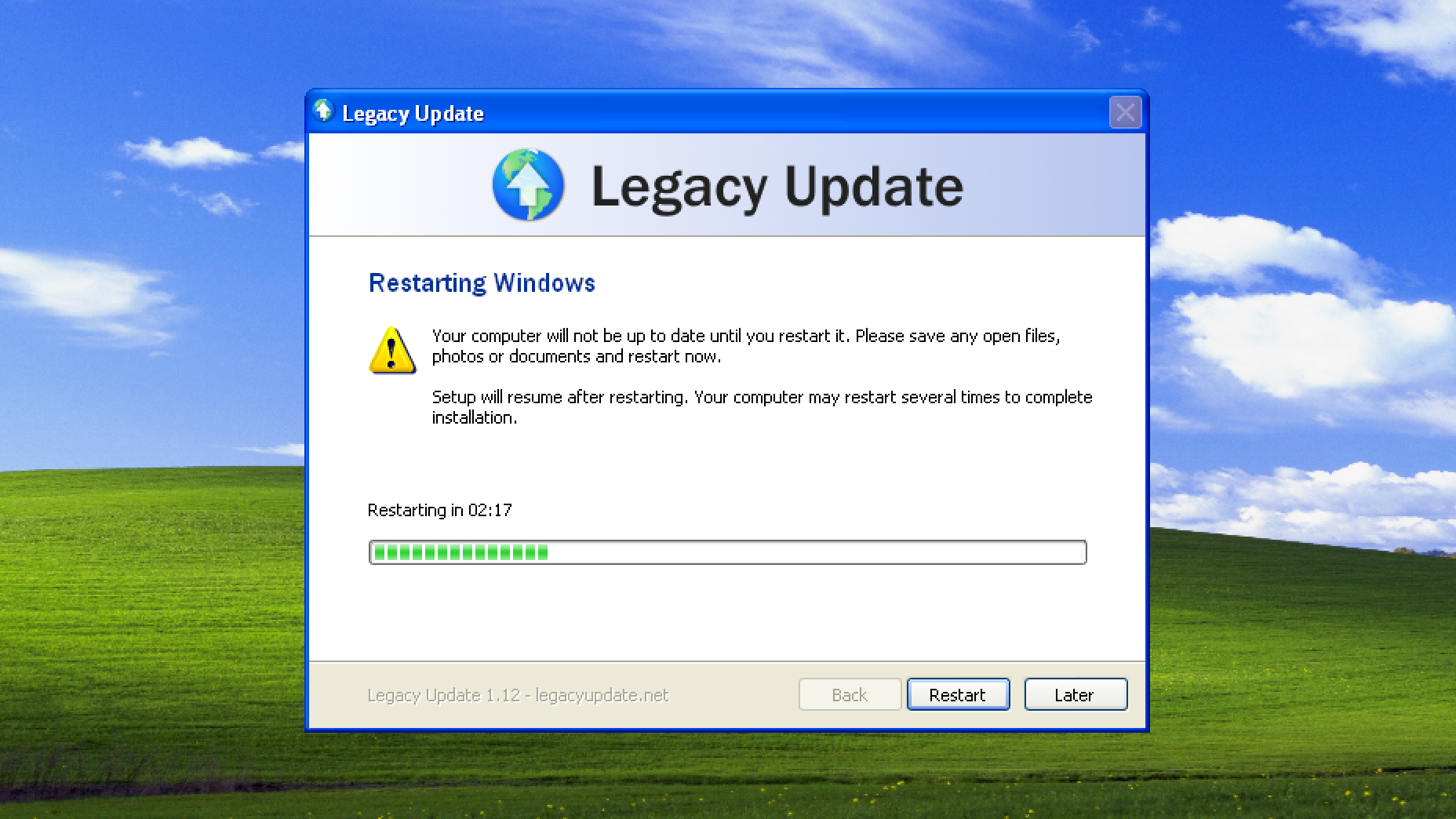
I annoyed people a few too many times with the automatic restart, so Legacy Update 1.12 adds a new 3-minute countdown. This also lets you choose to restart later. A bug with it incorrectly thinking a restart is needed on Windows 10/11 (sorry!) is also fixed.
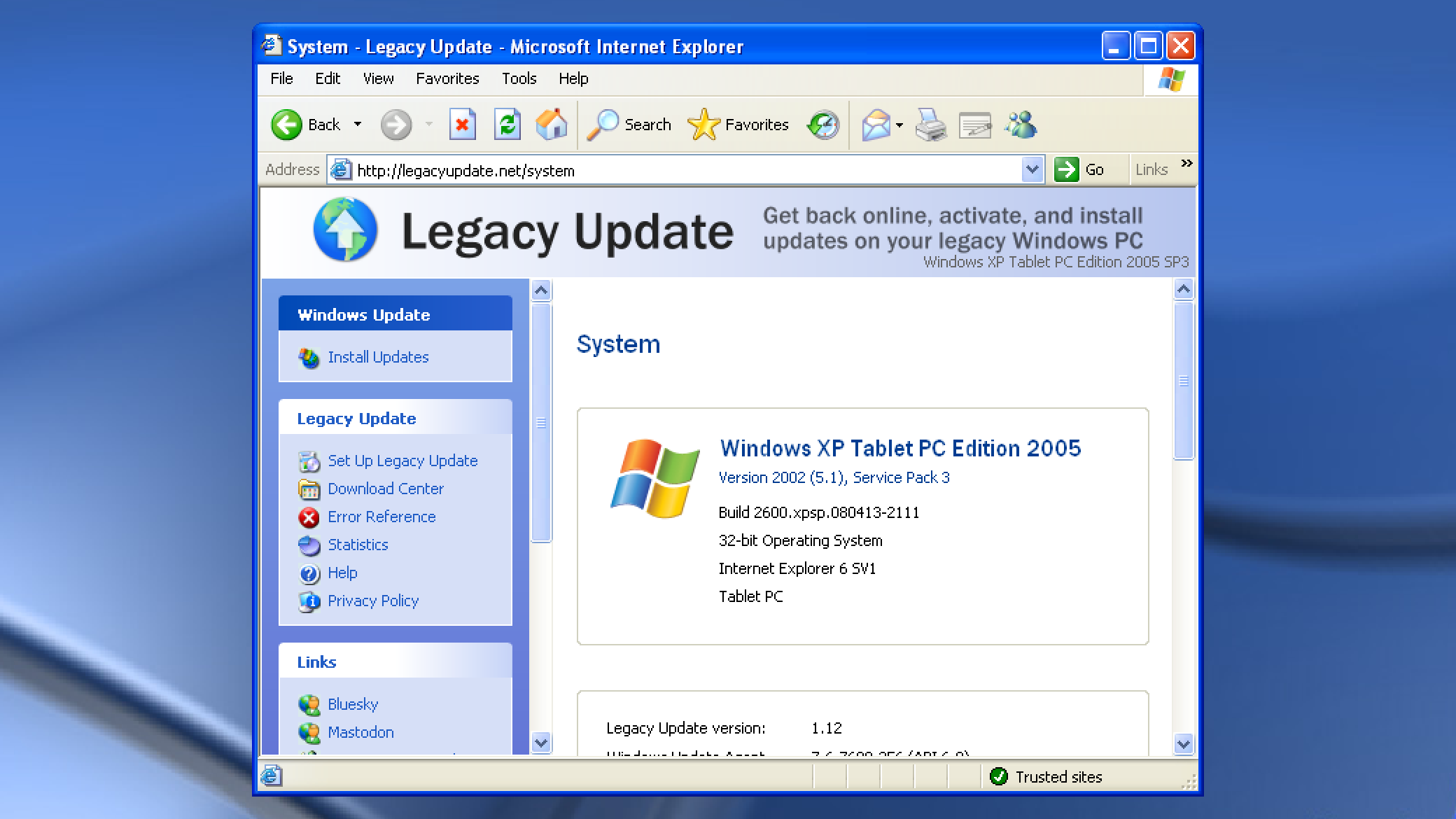
My never-ending quest to make every edition of Windows XP and Server 2003 identify itself correctly continues in this release. With some very specific exceptions, it should now always display the most accurate name for the OS. (Blog post still to come about the craziness behind this sometime)
We also added a partial fix for the slowest of all updates - those for .NET Framework. Each update has to go through an extremely slow, wasteful re-optimizing process. If you use the Legacy Update website to install updates, we now use a workaround to defer the optimization until the end.
Our code signing certificate expires less than 2 weeks from now. We are looking at free/discounted options, but may need to purchase the same certificate again for $369 USD. Your support is appreciated to help us reach this goal and continue working on Legacy Update for another 2 years.
Workaround for ISP issues
-
Adam Demasi
- Published:
I set up a workaround on the server that should fix Legacy Update being blocked by some ISPs (specifically, I just set up a new subdomain and redirected all Windows Update download traffic through there).
If you’ve been running into “Windows Update may be blocked by your firewall or proxy server” or error 8024402F, try again now, it should work. If not, you may need to force Windows Update to grab an updated list of download links from our server by deleting the C:\Windows\SoftwareDistribution folder and trying again.
Legacy Update 1.12 – Beta preview
-
Adam Demasi
- Published:
Hi everyone! I’m working on Legacy Update 1.12, where I’ve made a pretty major under-the-hood change. Now seems like a good time to release this for beta testing.
I’ve refactored the ActiveX control code to be built with the open-source MinGW compiler, rather than Microsoft’s Visual Studio 2008 (and a bit of 2010, and 2017, and 2022… you can see why I wanted to get rid of this).
Windows is heavily built around the Component Object Model. It’s a neat system where components of the OS can easily talk to each other, and third-party apps can extend the OS with new features. ActiveX is one of systems built on top of COM. With the great power of COM comes great amounts of code to interface with it. Microsoft “simplified” this for developers with Active Template Library, which generates most of the code for you through copious amounts of compiler magic. This relies on non-standard features of the Visual C++ compiler, and at any rate I was feeling paranoid about whether all the code it generates is even necessary.
So I started removing the ATL magic, and started writing that code by hand. It worked really well, and it reduced the combined size of the 32-bit and 64-bit ActiveX control dlls by 18%. Thanks to the wonders of file compression, the setup exe download is also now 24% smaller. Visual C++ 2008 (for 32-bit) and 2017 (for 64-bit) produce fairly different code, while our new streamlined MinGW toolchain is identical between both 32-bit and 64-bit (aside from the machine instructions of course), so they compress together really well.
This allowed me to better understand how ActiveX works, which made me realise there was a fair amount of dead code - a single line of ATL template magic could end up compiling thousands of lines of code that weren’t even being used. I also got the impression that a lot of what I needed to implement simply hasn’t been done with MinGW before. Perhaps the only project that does so is Wine. Hopefully I’m wrong?
Because we’ve eliminated a crazy amount of complexity needed to compile Legacy Update, the GitHub Actions nightly build now fully works on all versions of Windows we support. Previously, we could only use Visual Studio 2022 and Visual C++ 2017, which painfully took 10 minutes to install, and only supports Windows XP SP2 and up. (We also believe Microsoft recently broke the Visual C++ 2017 toolchain in Visual Studio 2022, and removed the feature rather than fixing it.)
The only bug I’m aware of is that the “Checking for updates” progress bar can draw in the wrong position if you scroll the page, or if the layout of the page changes. Unlikely you’ll run into this issue though.
I also spent way more time than I probably should have figuring out how to display the correct brand name for each edition of Windows XP and Server 2003. A lot of this already happened in Legacy Update 1.11, but of course, it goes deeper. Now, it should be the case that any edition of Windows is identified exactly correctly on the Legacy Update website (save for some later Windows 2000 editions I haven’t looked at yet). It wasn’t harming anything, the OS name is purely cosmetic and doesn’t affect which updates you get, but it bugs my inner perfectionist, ya know? Someday, I’ll finish writing up a long blog post about how Windows’s internal branding system was a mess before Vista.
Huge shoutout to Douglas Reno for putting together both the new build system, and a new continuous integration server we’ll switch GitHub Actions over to soon.
Enough yapping, give me the download
Here is a link you can always use to download the latest nightly build: https://nightly.link/LegacyUpdate/LegacyUpdate/workflows/build/main/artifact.zip
Since it’s https, you’ll likely need to download this on a modern PC or in a modern browser. (Did you know you can download browsers from content.legacyupdate.net?)
Release notes (draft)
- Legacy Update’s ActiveX control has been rewritten to be built with the latest open-source MinGW compiler, rather than Microsoft’s Visual Studio 2008. This brings 17 years of compiler improvements, reduces the (already small) installation size of Legacy Update by 18%, and makes it easier for us to work on the project.
- Windows XP and Windows Server 2003:
- Fixes setup redownloading the Windows Update Agent after upgrading Windows XP to SP3 or Windows Server 2003 to SP2.
- Fixes incorrect OS names being displayed for some editions.
- Windows Server 2008:
- Fixes setup incorrectly downloading Service Pack 1 for Windows Server 2008, which is already Service Pack 1.
- General fixes:
- Fixes the ActiveX control not being updated when the Legacy Update website is open in 32-bit Internet Explorer on a 64-bit system.
This particularly affects Internet Explorer 11, which runs as 32-bit by default. - Better handles “Unable to write to LegacyUpdate.dll” errors when the Legacy Update website is open in Internet Explorer.
- Better handles detection of Internet Explorer being uninstalled, particularly on Windows XP, 10, and 11.
- Fixes “Open File - Security Warning” dialog at the final stage of setup.
- Fixes multiple Windows Update settings dialogs appearing when clicking “Settings” or “Pick a time to install updates” on the website.
- Fixes the Notepad window being invisible when clicking “View Log File” on the website.
- Updates NSIS to version 3.11, which addresses a privilege escalation vulnerability (CVE-2025-43715).
- Fixes the ActiveX control not being updated when the Legacy Update website is open in 32-bit Internet Explorer on a 64-bit system.